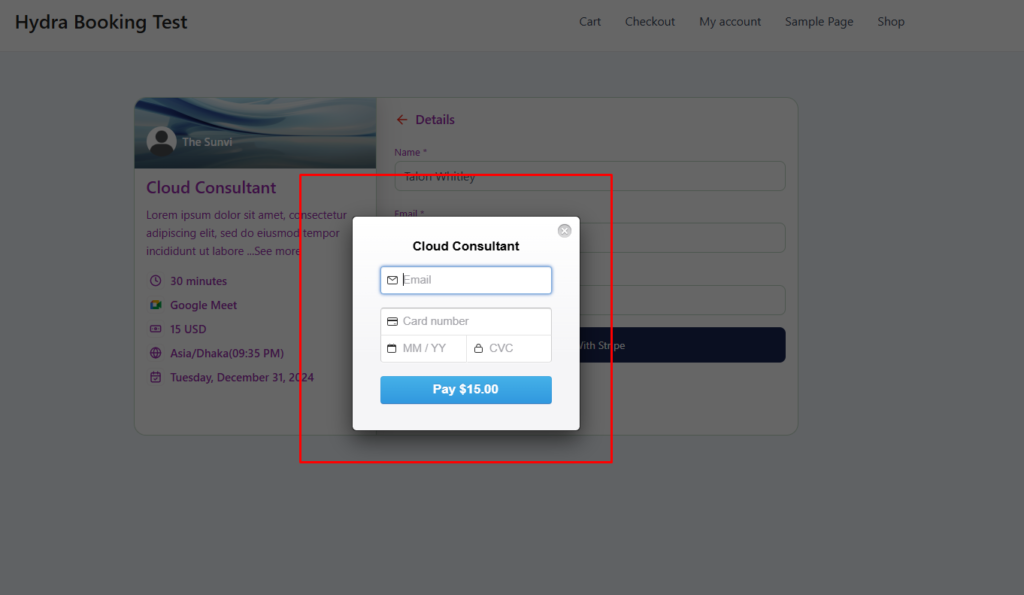
Stripe is one of the leading payment gateways for receiving payments from users. By integrating Hydra Booking with Stripe, you can seamlessly accept payments for your meetings.
In this article, we’ll provide a step-by-step guide on how to integrate Hydra Booking with the Stripe payment gateway.
How to Connect Stripe with Hydra Booking? #
Prerequisites #
- Ensure you have an active Stripe account. If you don’t have one yet, sign up here.
- Since Stripe integration is a pro feature, make sure you have a valid pro license for Hydra Booking. If you don’t have one yet, check pricing here.
Step 1: Get API Key from Stripe #
To connect Hydra Booking with Stripe, you’ll need to obtain your Stripe Public Key and Stripe Secret Key. Please note, I’m using Stripe in testing mode for this demonstration, but the steps are the same for a live account.
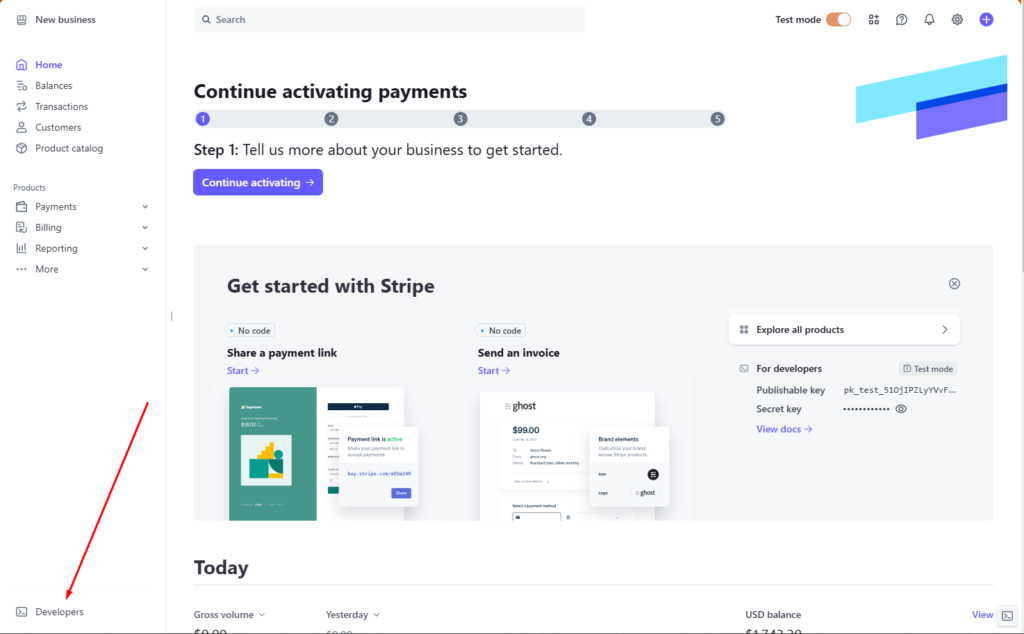
After logging in to your Stripe account, you will find a dashboard option at the bottom of the dashboard. Click on the “Developers” link.
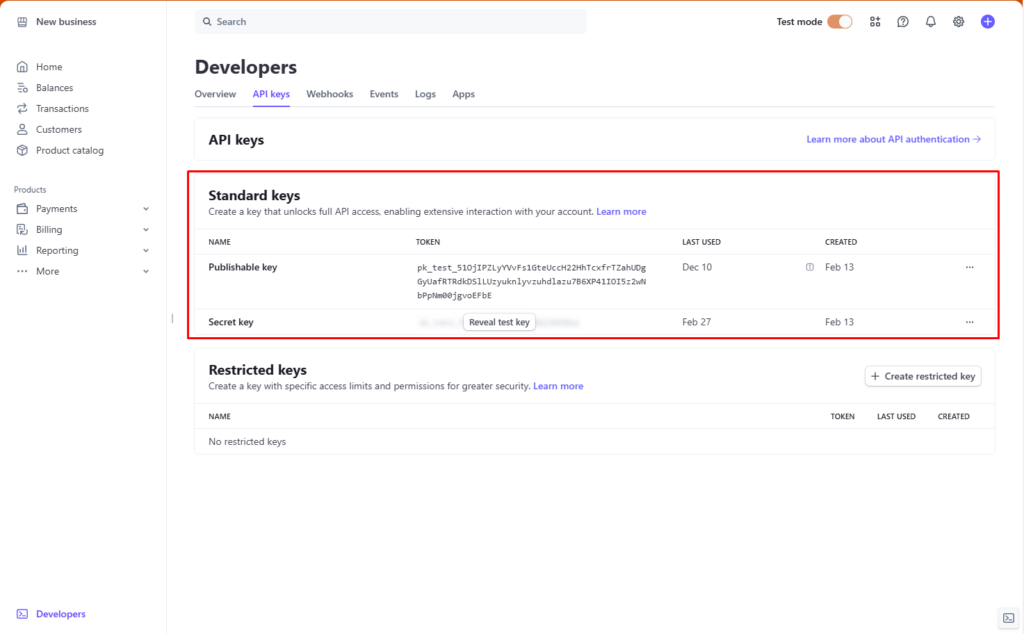
Once you’re in the Developers area, click on the API Keys tab in the navigation menu. Here, you’ll find the Publishable Key and Secret Key—both are required for integrating Stripe with Hydra Booking.
Step 2: Configure Hydra Booking Settings #
After obtaining the Publishable Key and Secret Key, navigate to Hydra Booking > Integration and locate the Stripe option. and click to the “Connect” Button.
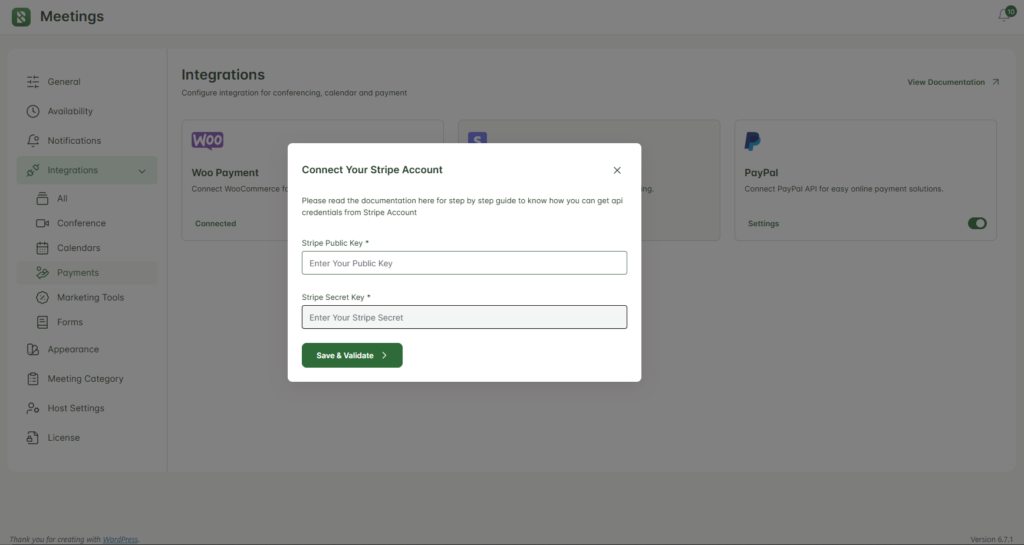
Paste the Public Key and Secret Key into the respective fields in the Hydra Booking settings. Once all the information is filled in, click the Save & Validate button to save your settings.
Step 3: Configure Hydra Booking Meeting #
After saving the settings, navigate to Hydra Booking > Meetings and edit your desired meeting.
Next, go to the Payment tab and toggle on the Payment for this Meeting option. Once enabled, additional options will appear.
From the Payment Method dropdown, select Stripe Pay. Then, enter the Price and select the Currency according to your preferences.
Here are my settings.
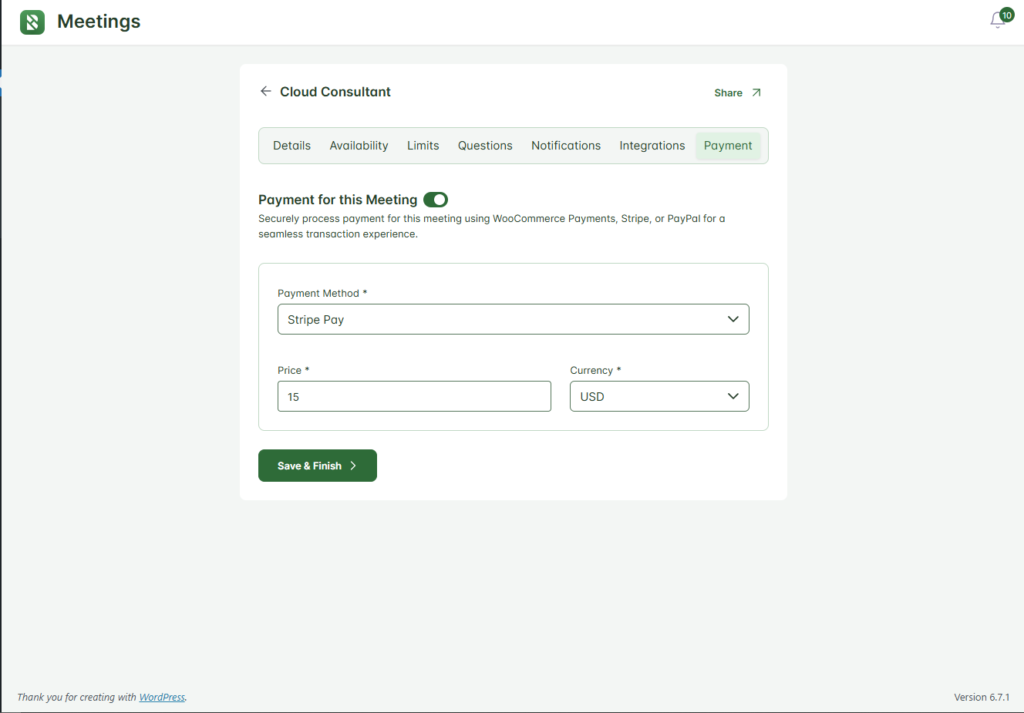
Now, click the Save & Finish button to save the meeting settings.
Testing the Stripe Integration #
Once every step is set up correctly, whenever an attendee tries to book your meeting, they will get an option for payment using Stripe Pay.