Hiding the product price and letting shoppers request a quote is a smart move if you sell:
- Wholesale or bulk products
- Custom-made items
- Services or projects with flexible pricing
Shopify doesn’t give you a built-in Request a Quote button. You either have to edit your theme code or use an app.
In this guide, I will talk about how to add a Request a Quote Button in Shopify, and walk you through both options and then show you how much further you can go with QuoteZic – Request a Quote. QuoteZic app built to handle the entire quote workflow, not just the button.
How to Add a Request a Quote Button in Shopify? – The Best Two Ways
1. Manually edit your Shopify theme (code method)
You can:
- Go to Online Store → Themes → Edit code
- Find your product template file (like main-product.liquid).
- Hide the price and the Add to Cart button.
- Add a custom button that links to a quote/contact page or opens a form.
This gives you full control, but:
- You need to be comfortable editing Liquid/HTML.
- You’ll spend time building and styling the form.
- Every change or new theme may mean more edits.
If you want it working without touching code, the second option is easier.
2. Use a Shopify Request a Quote app (no-code method)
Apps are made exactly for this use case. They let you:
- Add a Shopify Request a Quote button in products and collections.
- Show a form when the button is clicked.
- Collect and manage all quote submissions in one place.
QuoteZic – Request a Quote does this and then goes much further with multi-product quotes, internal notes, PDF proposals, discounts, analytics, and more.
You can install it here: QuoteZic – Request a Quote on Shopify App Store
Quick Start: Add a Request a Quote Button in Shopify with QuoteZic
Once you install QuoteZic, the setup is straightforward:
- Install the app from the Shopify App Store.
- Enable the widget in your theme (via app embed).
- Choose where to show the button – product page, specific products, or collections.
- Customize the form fields you want to collect from shoppers.
- Set up notifications (email, Slack, Mailchimp) so you and your team never miss a new quote.
- Test the flow once as a customer and as an admin.
Now the fun part: QuoteZic is not just “one button + one form”. Let’s go through what it actually does for you.
1. Fully Customizable Quote Form (Form Builder)
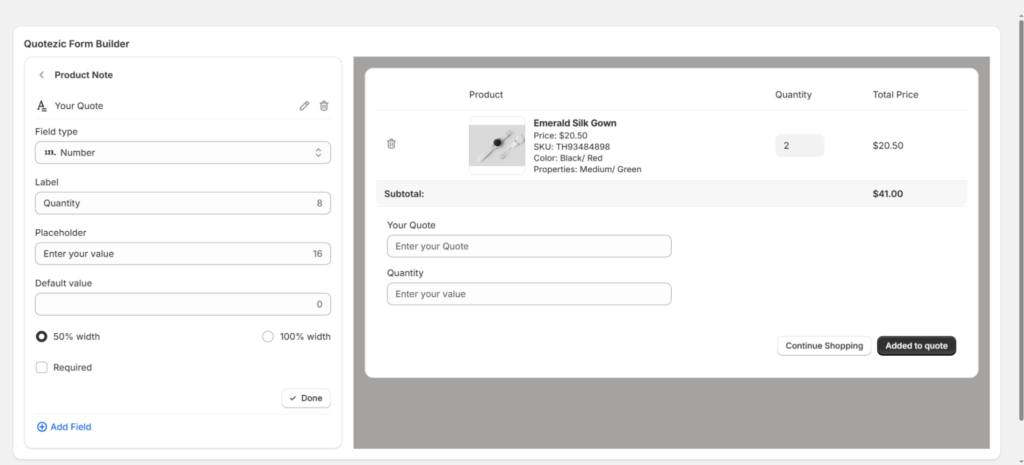
Every store needs different information to prepare a quote. With QuoteZic, you can:
- Add, remove, and rearrange fields with a form builder.
- Use various field types (text, textarea, number, etc.).
- Ask for all the details you need (dimensions, project notes, deadline, budget…).
You’re not stuck with a basic name + email + message form. You decide what data you need before you spend time preparing a quote.
2. Multi-Product Quotes with Product-Specific Custom Fields
Many quote tools treat the quote like a single message. QuoteZic treats it like a real cart for quotes.
Your customers can:
- Add multiple products to one quote.
- Provide different custom details per product.
- Submit one quote that covers everything in one go.
From your side, you can create as many custom fields as you want in the form builder, and those fields can be tied to each product in the quote. That means:
One quote submission can contain several products, each with its own custom requirements.
Perfect for wholesale, project bundles, or custom configurations.
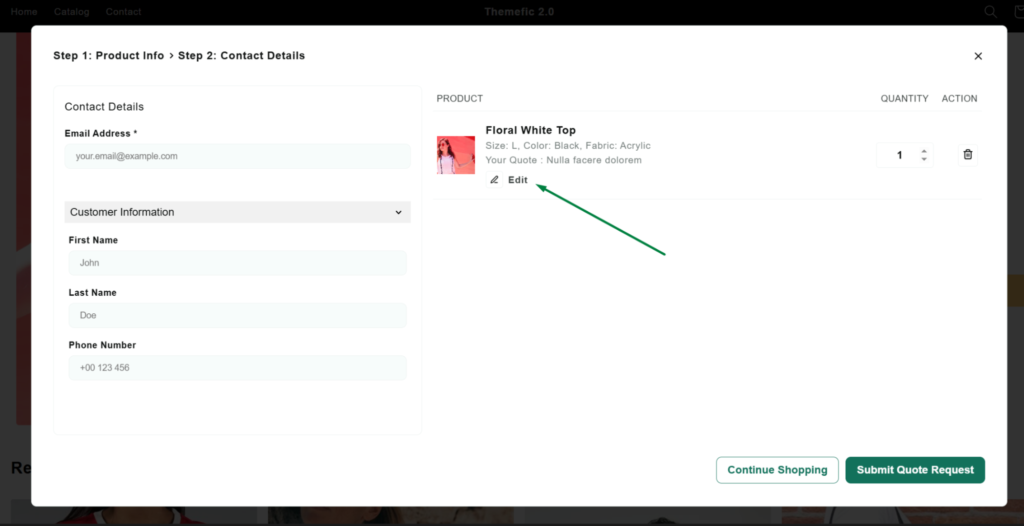
3. Quote List Pop-up (Mini Quote Cart Experience)
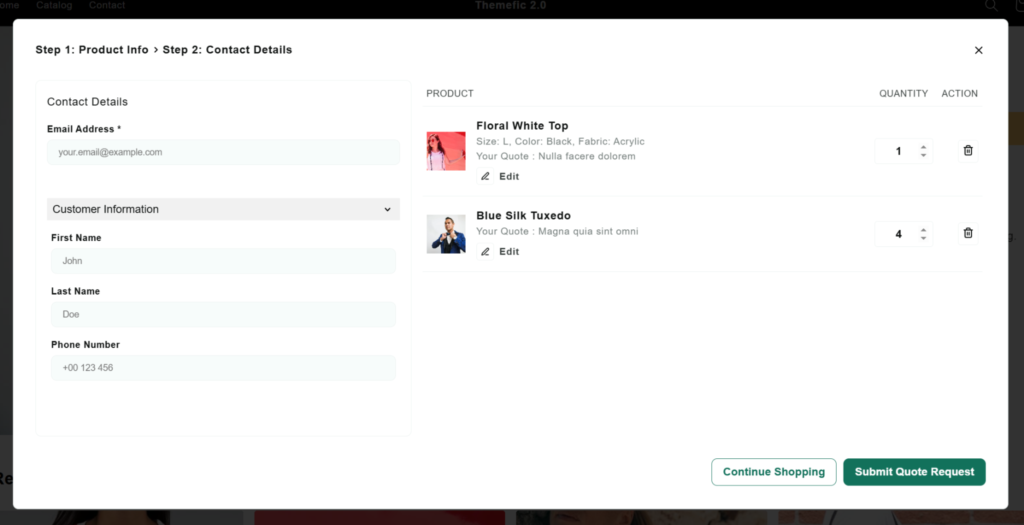
When a shopper clicks Request a Quote, the product is added to a quote list instead of a normal cart.
With the QuoteZic quote list (Pop-up Widget), customers can:
- See all the products they’ve added for a quote.
- Product edit option (Refill From before final go).
- Add more products before submitting.
- Or submit a quote for a single product only.
You can also:
- Choose what product details appear inside the pop-up (title, image, variants, etc.).
- Keep the experience clear and focused on the information you need.
This makes the quote process feel natural, like adding to a cart, but for inquiries instead of instant checkout.
4. Fully Customizable Request a Quote Button & Price Controls
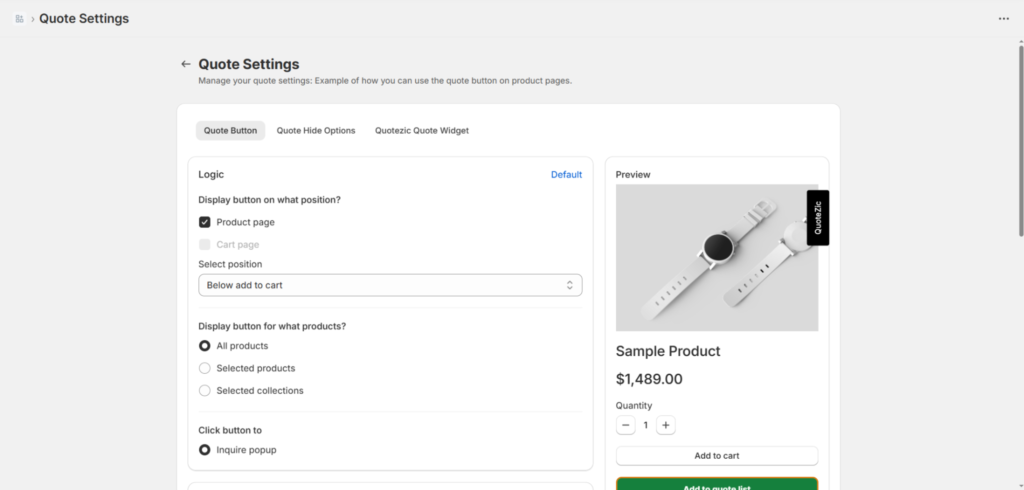
You don’t have to live with a generic button. QuoteZic lets you adjust:
- Button position on the product page.
- Button color and text.
- Font size.
- Border color and width.
Plus, for each product (or globally if you prefer), you can:
- Hide the product price.
- Hide the Add to Cart / Buy Now button.
This is very useful for:
- Products where the price depends on quantity or customization.
- B2B and wholesale catalogs.
- “Ask for price” or “Contact for quote” models.
5. Smart Notifications: Email, Slack, and Mailchimp
Once a quote is submitted, QuoteZic keeps everyone in the loop.
You can set up:
- Admin email notifications – you get an email with the quote details when a new quote arrives.
- Customer email auto-reply – the shopper gets a confirmation email that you received their request and will respond.
- Slack notifications – your team gets an instant alert in a Slack channel with full quote details.
- Mailchimp integration – when a customer submits a quote and fills in your form fields, their info can be sent automatically to Mailchimp using QuoteZic, so you can follow up with campaigns later.
This helps you respond quickly and keep your marketing list updated without extra manual work.
6. Webhook Integration (Zapier, Pabbly & Any Custom Webhook)
QuoteZic also supports powerful Webhook integrations, allowing you to send quote data to any external platform the moment a customer submits a quote.
You can connect tools like:
- Zapier
- Pabbly Connect
- Make.com
- Custom webhook endpoints
Once integrated, QuoteZic will automatically send the full quote payload — form fields, product data, quantities, prices, customer info, and more — directly to your webhook URL.
This makes it easy to:
- Push quote data into CRMs.
- Add leads to project management tools.
- Trigger automation workflows.
- Store submissions in Google Sheets.
- Send follow-up sequences.
No coding required — just paste your webhook URL and QuoteZic handles the rest.
7. Advanced Quote Inbox with Timeline
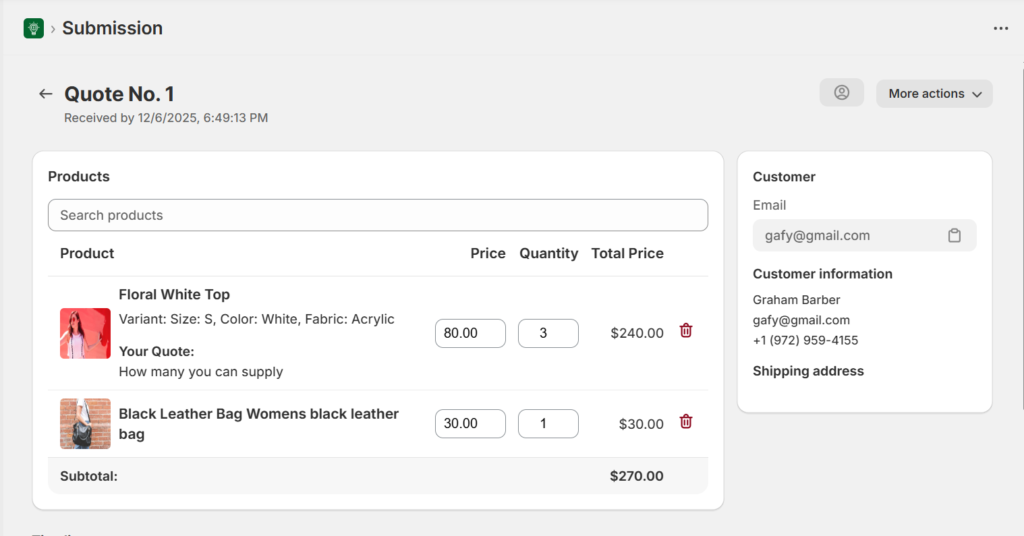
Inside QuoteZic, quotes are not just static entries. Each quote has its own detailed view and timeline.
For every submission, you can see:
- When the quote was created.
- What was changed over time?
- All updates are logged in a clear timeline.
This makes it easy to understand the history of any quote at a glance, even if multiple teammates touched it.
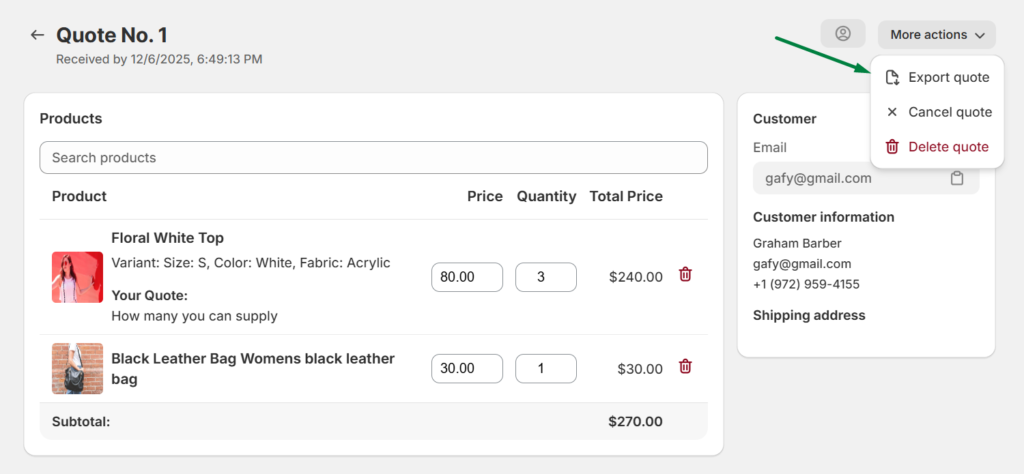
8. Edit Any Quote: Products, Prices, and Quantities
Quotes often change. A customer might say, “Let’s increase the quantity”, or “Can we swap this product?”
From the single quote view, you can:
- Change existing products
- Add new products to the quote.
- Remove products that are no longer needed.
- Update individual product prices.
- Adjust quantities per product.
Every change is logged on the timeline, so you see exactly what was modified and when. No confusion, no missing context.
9. PDF Quotes and One-Click Proposal Emails
Once a quote is ready, you shouldn’t have to copy everything into another system.
From the single quote view, you can:
- Generate a PDF version of the quote
- Send a proposal email in one click, with the PDF attached.
Your customer receives a clean, professional quote document by email. You stay inside the same app the whole time.
10. Offer Discounts and Send Updated Proposals
Need to negotiate or make a special offer?
On the same quote screen, you can:
- Apply a discount to the quote
- Send an updated proposal email.
- Attach the updated PDF with the new pricing.
This makes back-and-forth negotiation much easier and keeps everything documented.
11. Convert Quotes to Draft Orders
When the customer says “Yes”, your next step should be quick.
From the single quote submission view, you can:
- Create a draft order directly from the quote
No manual re-entry of products, prices, and quantities. The quote you already built becomes the base of the order.
12. Customize PDF and All Email Templates
Branding matters. With QuoteZic, you can customize from General Settings:
- The PDF template (logo, text, structure)
- All email templates used in the flow (admin alerts, customer confirmations, proposals, etc.)
This way, every message and document your customer sees feels like it’s coming from your brand, not from a random tool.
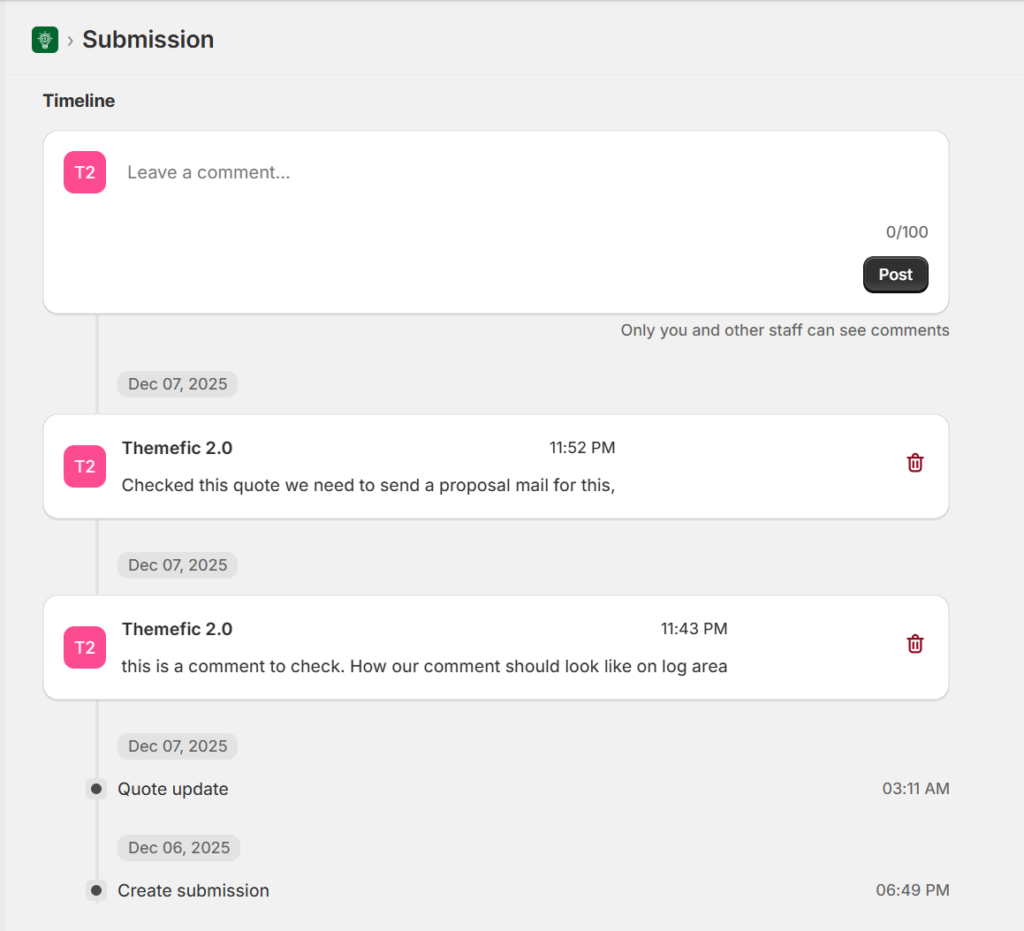
Internal Comments and Team Collaboration
Sometimes your team needs internal context, like:
“Customer wants this before the end of the month.”
“Check stock with the supplier before confirming price.”
In the single quote view, you can:
- Add internal comments to the quote
- Use the log/timeline so team members know what to do next.
These comments are for your team only, not for customers, but they live together with the quote, so nothing gets lost in separate chats.
14. Export Quotes as CSV, XLSX, and PDF
Your data shouldn’t be locked in.
QuoteZic lets you:
- Export all quotes as CSV or XLSX (for Excel, Google Sheets, BI tools, etc.)
- Export a single quote as a PDF (as mentioned earlier)
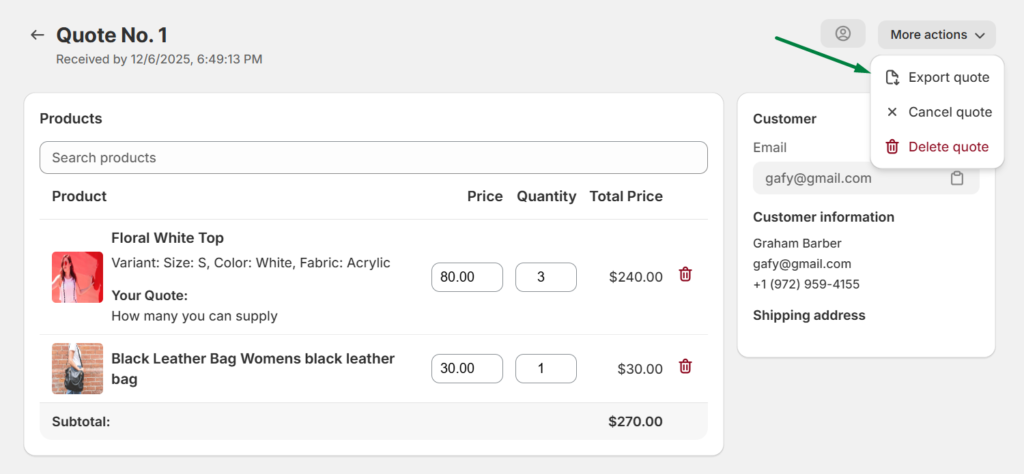
Useful for reporting, backups, or sharing with other departments.
15. Delete or Cancel Quotes (Without Losing History)
Not every quote turns into an order, and that’s normal.
You can:
- Delete quotes when needed
- Or cancel a quote (If canceled, then history will remain)
When you cancel a quote, the data stays in the database, but its status changes to Cancelled. That way, you keep a full history of how many quotes you received and how many did not move forward.
16. Analytics: See How Quotes Turn into Revenue
QuoteZic also includes an Analytics page so you can understand performance after enabling “Request a Quote” on your store.
You can track:
- How many quotes are you getting
- How many quotes became orders
- Sales and revenue from those orders
This helps you answer key questions:
- “Is the Request a Quote Shopify flow working?”
- “Which products get the most quote requests?”
- “Is this bringing real revenue, or just inquiries?”
Example: How a Full QuoteZic Workflow Looks
Here’s a simple example of how it plays out in real life:
- A customer visits a product where the price is hidden and sees Request a Quote Button.
- They click the button → product is added to the quote list pop-up.
- They add another product, fill in your custom form fields, and submit one quote.
- You get an email and Slack notification with all details; the customer gets a thank-you email.
- In QuoteZic, you open the quote, adjust quantities, and maybe add a discount.
- You generate a PDF and send a proposal email with one click.
- The customer agrees → you convert the quote into a draft order.
- Over time, the Analytics page shows you how many quotes turned into orders and total revenue.
Frequently Asked Questions
What is a Shopify “Request a Quote” button?
A Shopify request a quote button allows customers to ask for custom pricing instead of purchasing directly. It is useful for bulk orders, B2B sales, or products with variable pricing.
How do I add a “Request a Quote” button in Shopify?
You can add a request a quote Shopify feature by using a Shopify app, custom code, or form builder. Most users prefer apps because they are easy to set up and require no coding.
Why should I use a “Request a Quote” button in Shopify?
A quote button helps you capture leads, offer personalized pricing, and increase conversions for high-value or custom products. It is especially useful for wholesale or service-based stores.
Can Shopify handle negotiated quotes?
Yes, you can set up Shopify negotiated quotes setup using the Quotezic app.
Can customers upload requirements in a quote request?
Yes, many apps in a shopify quote request setup allow customers to add notes, upload files, or specify requirements, making it easier to provide accurate pricing.
Can I automate responses in Shopify quote requests?
Yes, you can send automatic confirmation emails when someone submits a request a quote shopify form. Some tools also allow follow-ups and reminders.
Does Shopify support quote requests without apps?
Shopify does not offer a built-in quote system. To create a proper shopify request a quote button, you’ll need an app or custom development.
Final Thoughts + Next Step
The process to add a Request a Quote button in Shopify is just the first step. The real value is in how you collect, manage, update, and convert those quotes into paid orders – with a clear history and clean communication along the way.
If you want all of that without touching code, you can try QuoteZic:
Install QuoteZic – Request a Quote: https://apps.shopify.com/quotezic
Check our other blogs from here.
Help us grow by sharing this Post!